How do I turn notifications on or off?
Kollekt reaches you in two ways: push notifications in the Kollekt app, and email. You can turn each one on or off.
Turn on push notifications in the app
1. Tap Turn on when the app asks
After you subscribe or get a drop, the app shows Enable notifications to stay up to date. Tap Turn on, then allow notifications when your phone asks. Not now hides it for now.
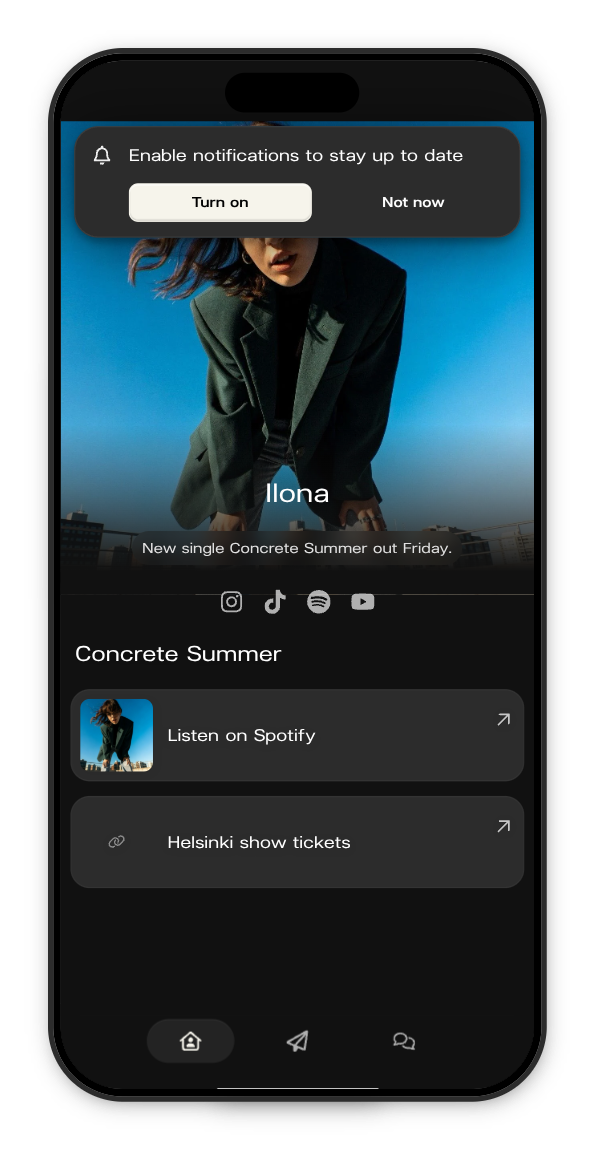
2. Or turn them on from your profile
Open the menu, tap your name at the top, then tap the gear to open Edit profile. Under Preferences, the Notifications row shows On, Off or Turn on. Tap it to allow notifications, or to open your phone's settings for Kollekt.
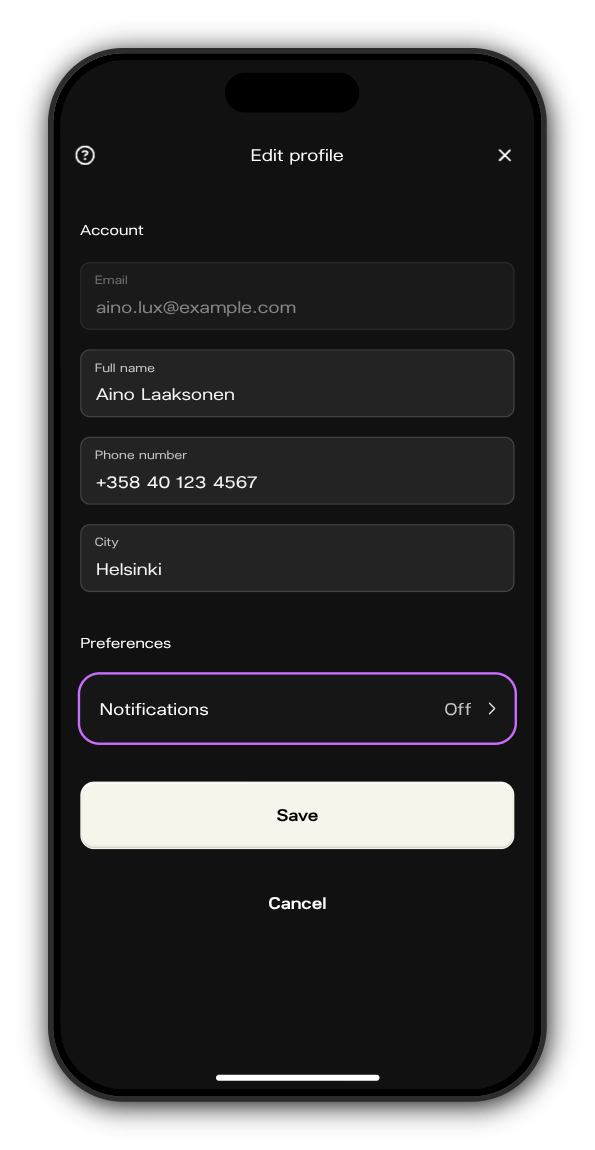
Turn push or email off
1. Open your notification settings
Go to app.kollekt.io/notification-settings and sign in if asked.
2. Switch off what you don't want
Use Push notifications and Email notifications. The page says Saved. when the change is stored.
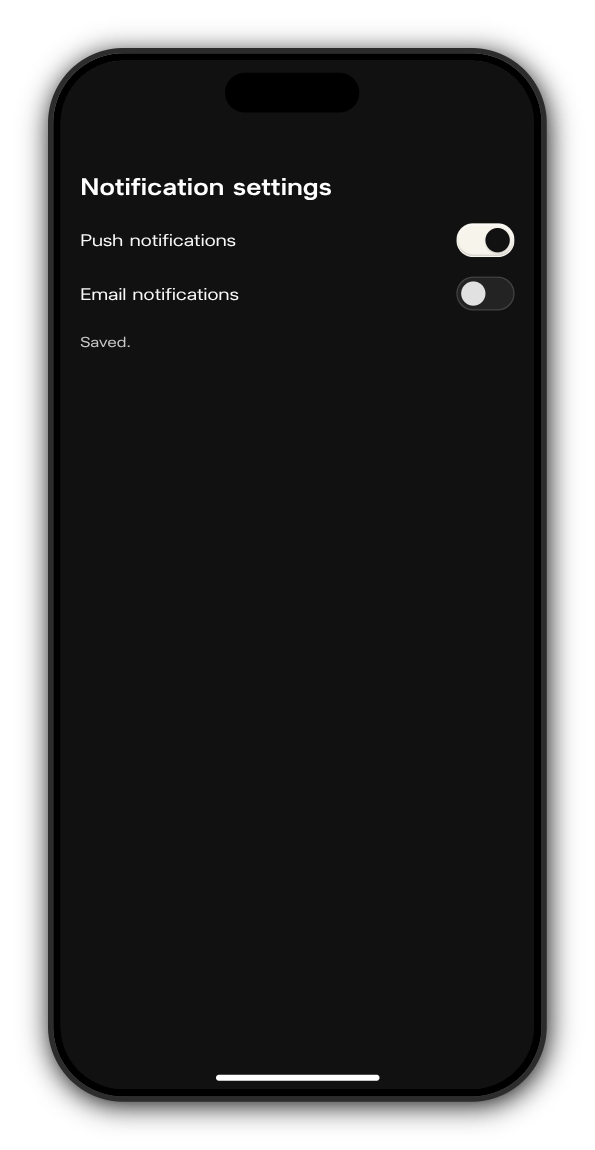
When push is off, posts that would have reached you by push come by email instead. To stop both, switch both off.
Unsubscribe from emails in one tap
Every Kollekt update email has an Unsubscribe link at the bottom. Tap it, then tap Unsubscribe to confirm. You can turn emails back on in your notification settings.
Related: I'm not getting push notifications
Updated on: 23/10/2026
Thank you!