How do I send a post to a group of members?
A group lets you send a Direct Line post to some of your members only, chosen by the country they're in and when they joined. Only the members in the group get the post.
Create the group
1. Open Groups
On your Kollekt, tap your picture with the gear in the tab bar, then Groups. Tap New.
2. Name it and pick countries
Tap the name to change it. Under Filters, pick the countries: From includes them, Not from leaves them out. The count at the top shows how many members match.
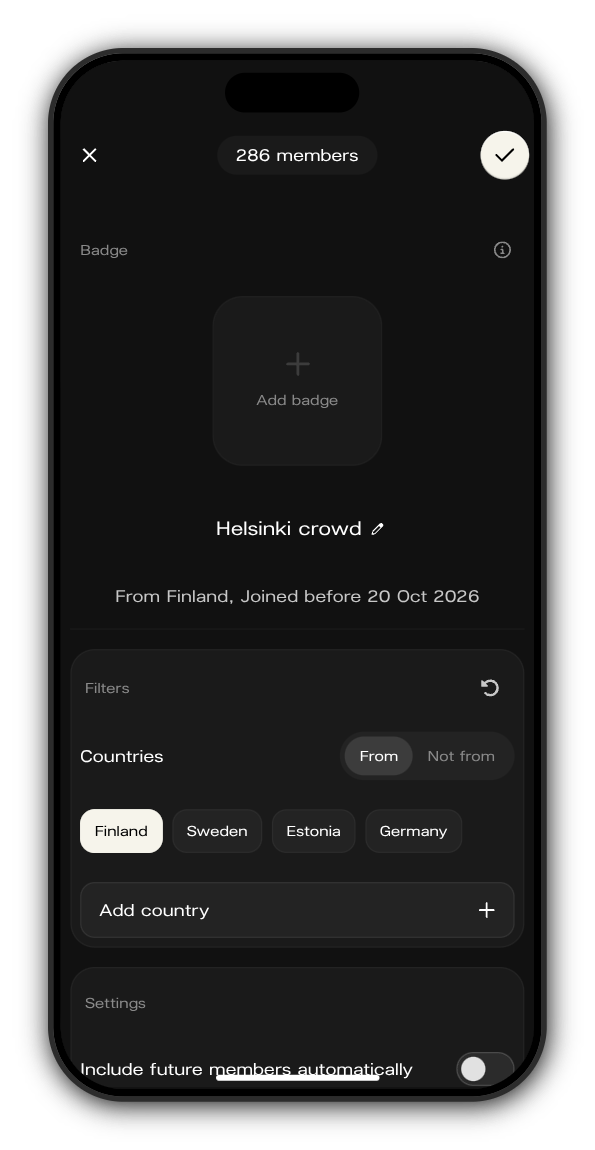
3. Choose by join date, if you like
Leave Include future members automatically on, and new members who match join the group by themselves. Turn it off to pick a date and time under Members who joined, with Before or After.
4. Keep Show in Direct Line on and save
Show in Direct Line lets you send posts to the group. Tap the tick at the top to create it.
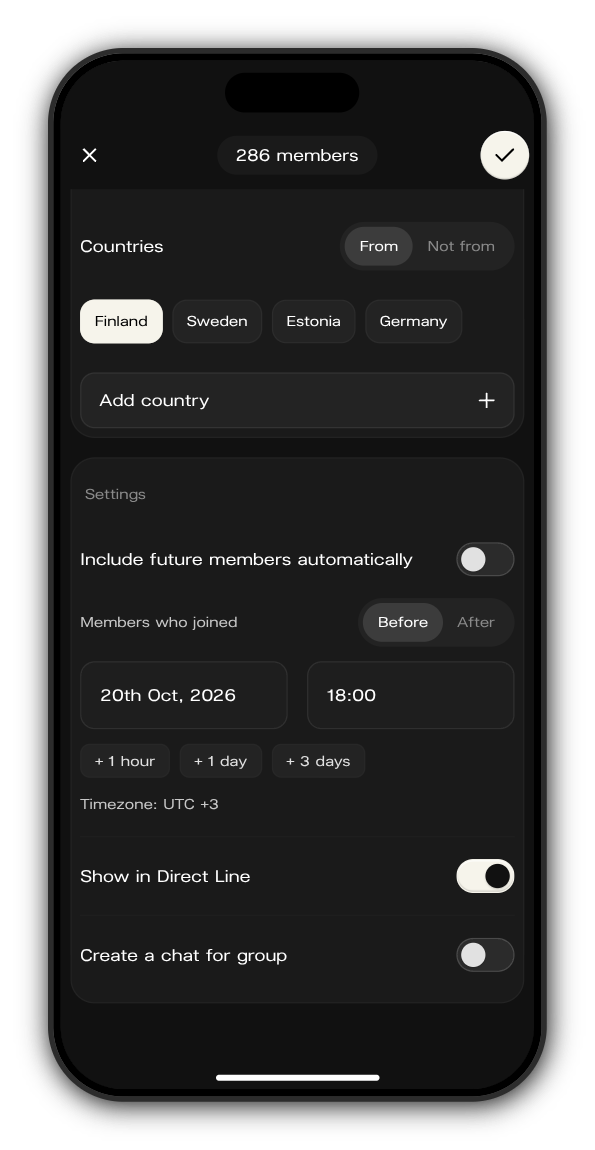
You can also give the group a badge in the same form, or turn on Create a chat for group to give it a chat of its own.
Send the post
1. Choose the group
On your Direct Line, tap + in the message box, tap Send to and pick the group.
2. Write and send
The message box now says it's sending to the group and shows its name. Write the post and send it.
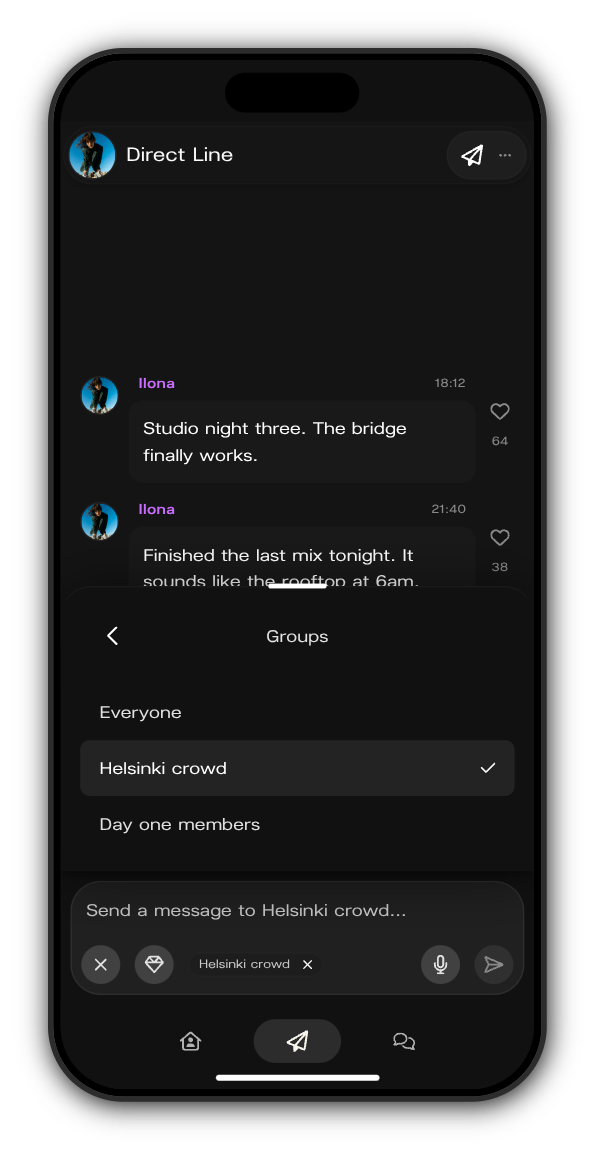
Your team sees a group icon under your picture on posts that went to a group. Tap the x on the group's name to send to everyone again.
Related: How do I use groups?
Updated on: 23/10/2026
Thank you!